Awesome Experience after doing Twin heart Meditation on 6th Feb, 2016
A Loving Atma Namaste, Just finished GMCKS Twin Heart Meditation

In windows we can access the Remote Desktop by using a remote desktop app provided by the windows. In order to successfully access the remote desktop we first need to do some simple setting in : Remote Desktop setting we have to enable the “Enable Remote Desktop” option. Then by using the Desktop name you can access the remote desktop.
But when we try to access the remote computer with simple settings currently active user on the remote computer can not access the remote computer. If a remote computer has multiple user accounts on the computer then we can access the other user without disturbing currently active users on the remote computer i.e. we can make remote desktop connections for multiple users without disturbing currently active user.
To allow multiple remote desktop connections we need to modify the termsvrl.dll which restricts the number of RDP (Remote Desktop Protocol) connections to one. There are two methods developed to enable the multiple RDP session without disturbing currently active user of remote desktop.
In this tutorial we will study the second method to allow multiple RDP sessions on windows 8 or 10.
RDP Wrapper is a free open source project to enable Remote Desktop Host support and allow us to access remote desktop connections for multiple users without disturbing currently active user.It works as a layer between Service Control Manager and Terminal Services, so we can access the remote desktop without modifying the original termsrv.dll file.
To use the RDP wrapper you must have the original termsrv.dll if you have made some changes or patched it before, it may not work or it will crash any time. So take care of that.
https://github.com/stascorp/rdpwrap/releases (v1.6).
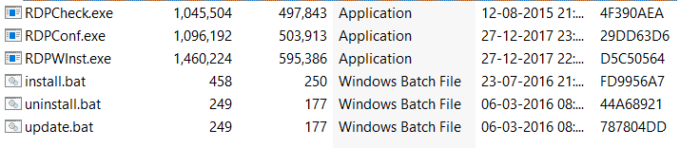
RDPWrap-v1.6.2.zip archive contains some files:
RDPWinst.exe — an RDP Wrapper Library install/uninstall program
RDPConf.exe — an RDP Wrapper configuration utility
RDPCheck.exe — Local RDP Checker
install.bat, uninstall.bat, update.bat — batch files for installation, uninstallation and update of RDP Wrapper
Open install.bat file with the Administrator privileges. It will install the RDP Wrapper.
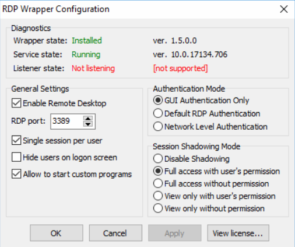
Open RDPConf.exe with Administrator privileges. Make sure that all elements in the Diagnostics section are green. (If your all elements in the Diagnostic section are in the green then you are ready to connect the remote desktop )
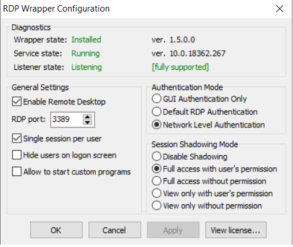
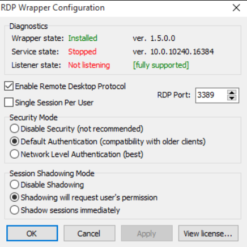
Check TermService is not stopped. To start TermService try command
net start termservice
net stop termservice
net start termservice
Note: If still rdpwrap.ini version is [ not supported] then try another version of rdpwrap.ini. You will get a different file of rdpwrap.ini on github. For me the above file is worked.
Network Level Authentication decides the user’s credentials from the client through a client-side Security Support Provider and It do the authenticate before establishing a session on the server. Network Level Authentication was introduced in RDP 6.0 .
A user will have the same view of desktop/running apps whether its login directly from the console, or (later) logging in through remote desktop. Obviously only one session for that user can be connected at the same time.
Step 6: Save the changes and reboot.
Now try to connect the Remote Desktop. And access the user which is currently not working. This way you can access the remote desktop without disturbing currently active user.
This way by modify the termsvrl.dll which define the number of RDP session you can allow remote desktop connections for multiple users on windows 10 or 8.




Copyright 2011-2026. Makarand Mane - All rights reserved. Powered by WordPress


